Power Virtual Agents with Machine Learning and Multilingual CLU
Introduction
Imagine Power Virtual Agents as a chatbot superhero. It’s a Microsoft platform that allows you to create chatbots quickly and easily without needing to be a programming expert. It’s like having your own personalized virtual assistant.
On the other hand, conversational language recognition is like this superhero’s superpower. It’s a technology that allows chatbots to understand and interact in human language. So, basically, it gives your chatbot the ability to understand and respond to what users are saying or writing.
Think of integrating conversational language recognition into Power Virtual Agents as the special training our chatbot superhero needs. It’s like learning a new superpower.
By integrating conversational language recognition, your chatbot can not only understand and respond to basic queries, but can also understand the context, emotions, and intentions behind users’ words. It’s as if your chatbot could read users’ minds.
This integration makes interactions with your chatbot more natural and fluid, improving user experience. Additionally, it allows your chatbot to handle more complex queries and provide more accurate responses.
Continuing with the superhero analogy, we could say that Azure Cognitive Services is like the superhero academy where our chatbot acquires its superpowers. Azure Cognitive Services is a collection of artificial intelligence services that allows developers to incorporate intelligent algorithms into their applications to see, hear, speak, understand, and even interpret user needs.
In the case of our chatbot, one of the most impressive superpowers it can acquire at this academy is conversational language recognition. But that’s not all—it can also learn to be multilingual. Imagine our chatbot is like a superhero with the incredible ability to speak and understand several languages. This means it can interact with users worldwide, regardless of what language they speak.
So, by integrating conversational language recognition and multilingual recognition into Power Virtual Agents through Azure Cognitive Services, you’re equipping your chatbot with some truly impressive superpowers. Not only will it be able to understand and respond to user queries, but it will also be able to do so in multiple languages.
It’s like having a team of international superheroes ready to help your users anytime!
Creating an Initial Bot
To start, we’ll assume we have an already created and fully functional bot that follows this usage diagram:
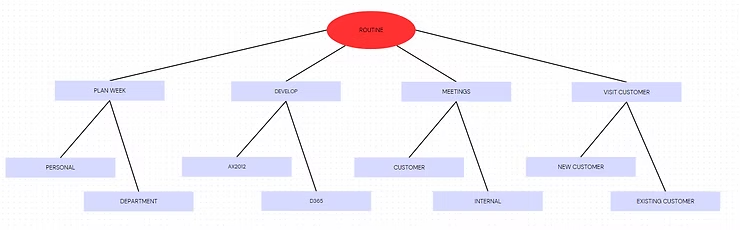
As you can see, the bot’s objective is to let us tell it what we want to do and pass through 2 levels depending on our choice. It’s important to note that all these choices will come from user phrases, never from selection, as otherwise the functionality would be reduced to something very simple.
So at the end of each node, we expect the bot to suggest a way to act; in our case, it simply shows us a phrase to confirm that we’ve reached the correct node.
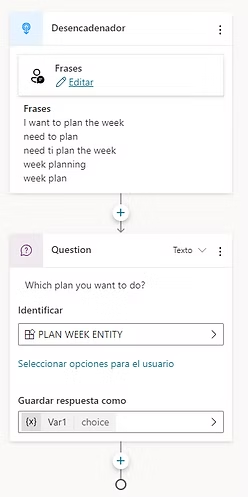
For this, we’ll have a topic for each node and subnode with the following structure:
As you can see, we had to add trigger phrases for the bot to recognize that topic. This step is the one most affected by our new functionality. Until now, we would enter phrases and Power Virtual Agents would try to identify topics based on them, but without the ability to train or refine it.
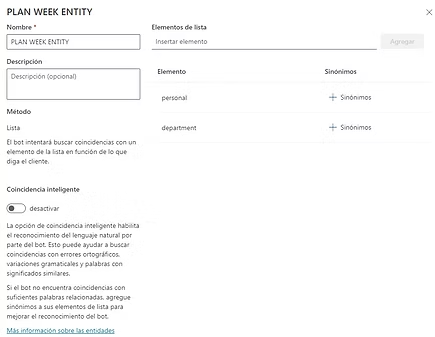
And for each main node, an entity to identify the subnodes:
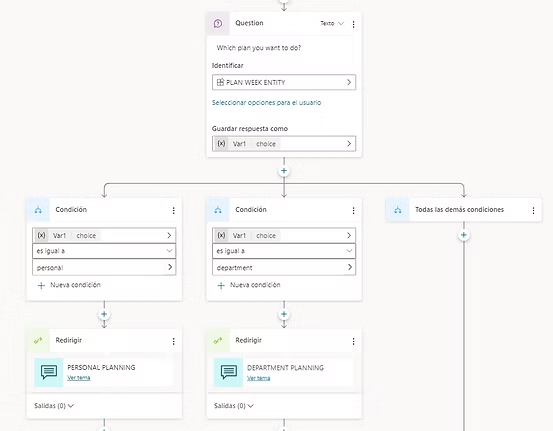
Depending on the user’s response, we would redirect the bot to the specific final topic:
Where each final node would have the following structure:
As you can see, the final result is a phrase identifying each node so we know it has passed through the correct location.
Analysis of Limitations and Potential Solutions in Bot Implementation
Multilingual Limitation and Synonym Handling:
- Challenge: The bot is currently restricted to a single language, which makes it difficult to understand multiple languages and synonyms.
- Proposed Solution:
- Implementation of Multilingual Models: Explore advanced NLP solutions that allow the implementation of multilingual models, enabling the bot to understand diverse languages.
- Synonym Management: Use sophisticated NLP techniques, such as creating multilingual synonym databases or embeddings, to address synonyms in different languages.
Perfecting the Predictive Model:
- Challenge: The current predictive model is not trainable or improvable efficiently, which affects bot accuracy.
- Proposed Solution:
- Continuous Training: Implement a continuous training system for the bot’s predictive model, allowing progressive improvements based on user data and patterns.
- User Feedback: Establish a mechanism for users to provide feedback on inaccurate responses, leveraging this information to refine and perfect the model.
Case Sensitivity Issues:
- Challenge: Entities recognize uppercase and lowercase, which can generate incorrect results.
- Proposed Solution:
- Text Normalization: Normalize all user inputs to lowercase before processing, ensuring consistency in input treatment, regardless of capitalization by the user.
And here’s where this new preview functionality comes in!
Creating a Custom Natural Language Model
Prerequisites:
- Azure subscription
- Create a Language Studio resource in the same region where your Power Virtual Agents bot resides: https://aka.ms/languageStudio
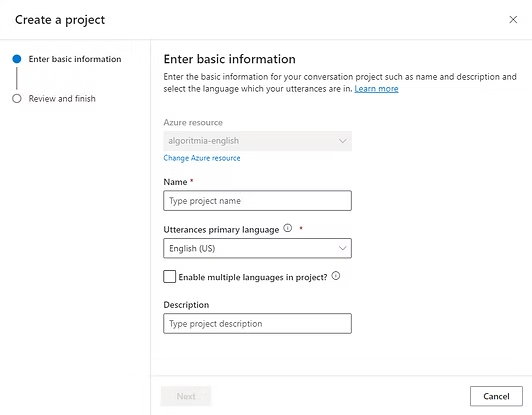
Once we have the Language Studio resource created, we can proceed to create a conversational language understanding project:
Project Name:
- Specify a meaningful name for the project. Make sure to copy this value, as it will be important for future reference.
Primary Language of Utterances:
- Select the primary language of the model. If you want to create a multilingual bot, check the corresponding option to skip the primary language.
Enable Multiple Languages in the Project:
- Check this option to allow the model to recognize and process multiple languages in user phrases.
With these steps, we’re already prepared to start working on our new bot model.
Planning the Actions
To start, we need to have 2 premises clear:
- To ensure that PVA functions correctly, we must create intentions for Power Virtual Agent system topics and any custom topics
- Create any custom entities that we want to use in our Power Virtual Agents.
But choosing the methodology is not simple. So let’s explain a bit of theory about how to structure topics and entities. To do this, I’ve asked GPT to explain it to us with an example:
Imagine you’re building a chat robot that understands and responds to user questions. To do this, you need to define two things: the “intentions”, which are the actions or queries that users might want to do, and the “entities”, which are the details or information that the robot needs to perform those actions.
For example, if you’re creating a chat robot for an online store, you could have an intention called “Buy” and an entity called “Product”. When a user says “I want to buy a book”, the robot recognizes “Buy” as the intention and “book” as the entity.
There are different ways to define intentions and entities. One way is to think of actions as intentions and information as entities. Another way is to think of information as intentions and actions as entities. The important thing is to be consistent and not mix different approaches.
With this, for our example, we’ll need to create the following topics:
The underlined topics correspond to generic system topics that we’ll also need to generate.
As for entities, we have the following:
Let’s get to work, then!
If we enter the Language Studio project we just created, we’ll see that in the Schema definition section we can create Topics and Entities. This is when we need to start creating the same things we had in Power Virtual Agents until it looks similar to the following:
It’s important to keep the same name for topics and entities since later you’ll see that for it to work, we need to reference it by its name.
Once we’ve created the topics and entities, we can start feeding our model with phrases and languages.
- Go to the Data labeling section
- Start entering phrases for each Topic, in the project’s primary language. The more, the better!
And here’s where we can give the system an extra boost and take advantage of Azure OpenAI or any AI tool to help us with this task. As you can see, there’s a button to upload a “phrases” file and another button for Azure OpenAI to suggest phrases for a particular topic. If we press it, we’ll see the following:
With this tool, we can save a lot of time entering phrases in different languages since AI will facilitate the work. If you still can’t have access to this resource, you can use ChatGPT as follows:
- Pass the example JSON file format that the system expects via PROMPT:
[
  {
    "language": "en-us",
    "intent": "Quote",
    "text": "I left my heart in Alexandria Egypt"
  },
  {
    "intent": "BookFlight",
    "text": "Book me a flight to Alexandria Egypt"
  }
]
- ChatGPT will recognize that this is a file of phrases for a Topic
- Ask it to generate examples for several languages for Topic X that we want
- Save the output to a JSON file and import it in Language Studio
A result would be the following:
[
    {
        "language": "es-es",
        "intent": "AX2012",
        "text": "Necesito hacer un desarrollo para AX2012."
    },
    {
        "language": "es-es",
        "intent": "AX2012",
        "text": "Estoy trabajando en un proyecto de desarrollo para AX2012."
    },
    {
        "language": "es-es",
        "intent": "AX2012",
        "text": "¿Puedes ayudarme con un desarrollo para AX2012?"
    },
    {
        "language": "es-es",
        "intent": "AX2012",
        "text": "Estoy programando una aplicación para AX2012."
    },
    {
        "language": "en-us",
        "intent": "AX2012",
        "text": "I need to do a development for AX2012."
    },
    {
        "language": "en-us",
        "intent": "AX2012",
        "text": "I'm working on a development project for AX2012."
    },
    {
        "language": "en-us",
        "intent": "AX2012",
        "text": "Can you assist me with a development for AX2012?"
    },
    {
        "language": "en-us",
        "intent": "AX2012",
        "text": "I'm coding an application for AX2012."
    },
    {
        "language": "fr-fr",
        "intent": "AX2012",
        "text": "Je dois faire un développement pour AX2012."
    },
    {
        "language": "fr-fr",
        "intent": "AX2012",
        "text": "Je travaille sur un projet de développement pour AX2012."
    },
    {
        "language": "fr-fr",
        "intent": "AX2012",
        "text": "Pouvez-vous m'aider avec un développement pour AX2012 ?"
    },
    {
        "language": "fr-fr",
        "intent": "AX2012",
        "text": "Je code une application pour AX2012."
    },
    {
        "language": "de-de",
        "intent": "AX2012",
        "text": "Ich muss eine Entwicklung für AX2012 machen."
    },
    {
        "language": "de-de",
        "intent": "AX2012",
        "text": "Ich arbeite an einem Entwicklungsprojekt für AX2012."
    },
    {
        "language": "de-de",
        "intent": "AX2012",
        "text": "Können Sie mir bei einer Entwicklung für AX2012 helfen?"
    }
]
To complete this step fully, many phrases are needed. The more we have, the better our bot will clearly recognize what we want to do.
And the question… all in all languages?
The answer is NO. One of the advantages of Language Studio is that it’s capable of recognizing the language and translating it to find matches. We only need to add phrases in other languages if we see that in those languages the accuracy is very low and we need to refine them.
Now we’ve acted on the Topics. Let’s start with the entities.
We create the entities with the same name we have in Power Virtual Agents:
And now we have several ways to configure these entities:
- Learning
- Prebuilt entity
- Regular expression
- List
The last 3 already exist in Power Virtual Agents, so we’ll investigate the one that doesn’t exist there, and for me, the most interesting one.
Let’s configure the DEVELOP ENTITY we just created using the learning method:
- Open the Data labeling section where we have all our phrases
- You’ll see that on the right there’s a section with the entities we created, and next to them a marker symbol
- Select the marker and start playing!
- In each of the phrases where we see our entity identified, underline the part of the phrase
And we do the same thing with all the phrases and all the entities. I repeat the same as before: the more, the better.
This same action can be done in the JSON created earlier and then imported it identifying the entities.
You can consult best practices when modeling entities in the following link:
Creating a consistent model is not an easy task as it requires a lot of training and having a robust schema thought out before you start on it.
Training the Model
Once we have the project completed, we need to train it so the Machine Learning tool creates the model and we can start using it. To do this, we go to the Training Jobs section and run the training according to the parameters we want:
Once trained, we can go to the Model performance section where we can see the analysis of the model, prediction percentages, and other very useful information.
For those more knowledgeable on this topic, you can also consult the confusion matrix used and the results:
And again, we ask GPT to explain to us what the confusion matrix is:
The confusion matrix is a tool used in the field of artificial intelligence to evaluate the performance of a classification model, that is, a system that has been trained to distinguish between different categories or classes.
Imagine you have a system that has been trained to distinguish between cats and dogs. When you show it an image, the system will make a prediction: is it a cat or a dog?
The confusion matrix is a table that helps us understand how well our system is doing. It consists of four parts:
True Positives (TP): The system predicted “cat” and the image was really of a cat.
False Positives (FP): The system predicted “cat”, but the image was actually of a dog.
True Negatives (TN): The system predicted “dog” and the image was really of a dog.
False Negatives (FN): The system predicted “dog”, but the image was actually of a cat.
These four numbers give us a complete idea of the system’s performance. For example, if false positives are very high, it means the system is incorrectly classifying many dog images as cats.
And once the results are good enough, we can implement the model so it’s available for use:
- Go to the Deploying a model section
- Add a name to the deployment (copy this name for later)
- Accept and wait for the deployment to finish
With this completed, we can go back to Power Virtual Agents!
Assigning CLU Intentions and Entities
To assign the CLU model to Power Virtual Agents, we’ll follow these steps:
- Go to the language tab of our bot
- Create a connection with Azure Cognitive Services and select it
- Save
- At that point, it will tell us that we can migrate the bot to CLU, save a snapshot of the bot just in case and check the box
- It will ask for the project name and deployment name. This is when you need to enter the 2 components copied earlier and they must match those configured in Language Studio
Once done, we have our bot pointing to our CLU model. We only need to map each topic and each entity with its corresponding CLU one.
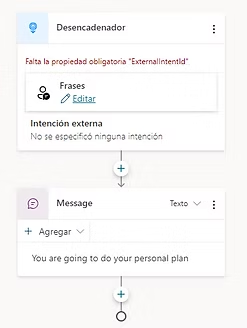
To do this, we’ll go to each topic, click on the trigger, and enter the same name the topic has in CLU:
If what we have is a very complex bot, there’s the bulk import tool in the language tab:
- Export the project from Language Studio
- Import it into the tool
And the multilingual aspect?
You may have wondered how all this solves the multilingual issue. Yes, we’ve configured topics and entities, but the bot still understands in one language and responds in that language.
This is where an additional topic comes in that the system created when we switched to CLU. The topic is called “Analyze text”.
Everything the user says goes through this topic. It sends it to Language Studio and gets back the conclusion: recognized topic and entities.
If we enter it, we’ll see that it makes a call to Language Studio:
In which one of the parameters is the language. So we’ll modify that topic to introduce one more box:
This box will call a Power Automate that will return the language of the user’s message to us.
On the return and for each message the bot says to the user, we’ll do the opposite step, translate to the user’s language.
Power Virtual Agents with Machine Learning
Now we have our bot completed, so let’s see it work.
As you can see in the following video, although our bot is created in English, we’re writing to it in Spanish and it correctly recognizes our prompt.
Conclusions
- Conversational Language Understanding (CLU) is an Azure AI service that allows you to create custom natural language understanding models for conversational applications.
- Power Virtual Agents is a tool that allows you to design and publish your own chatbot without needing to know how to program.
- You can integrate your CLU model with your Power Virtual Agents bot to take advantage of the intentions and entities you’ve defined in your CLU project.
- To integrate your CLU model with your bot, you should keep in mind the following aspects:
- Choose a coherent schema to define intentions and entities, either by modeling actions as intentions and information as entities, or vice versa.
- Prepare your Azure environment and language resource with the CLU function enabled.
- Train and deploy your CLU project in the same region as your Power Virtual Agents resource.
- Assign CLU intentions and entities to bot topics and questions.
- Update the bot’s trigger phrases to link each topic to a corresponding CLU intention.
- Manually manage the relationship between the CLU model and Power Virtual Agents.
- Integrating CLU with Power Virtual Agents offers you several advantages, such as:
- Improving the accuracy and coverage of your bot by using a custom natural language understanding model.
- Easily extending existing functionalities to new destinations or actions by creating new entities or intentions.
- Combining multiple CLU sub-applications or other Azure AI services in an orchestrated application.