Jobs in D365FO 10.0.25: Development in Production
Those of us who have struggled with various versions of Dynamics have always missed that access to the AOT in the Production environment in D365FO, access to its database, and being able to tinker there.
This desire or this longing is accentuated when it is suspected that in D365FO we will not be able to create Jobs in Production without first uploading a package and stopping the environment.
The end of these days has come. In release 10.0.25, the appearance of a series of new functionalities is expected, highlighting the fact of being able to “develop jobs” in Production without having to stop the environment.
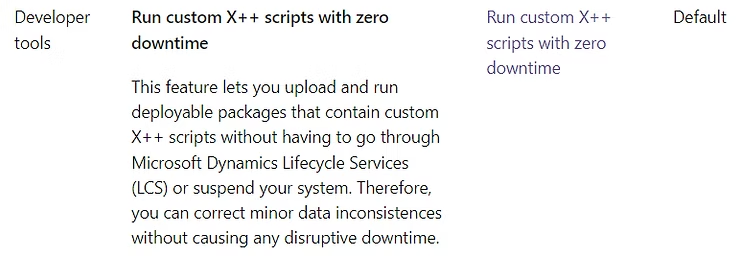
So we only need our environment to be on version 10.0.25 (still in Preview) and follow these steps:
Overview
- Enable the flight that allows us to enable the feature
For this on the machine where we have version 10.0.25 we run the following statement using d365fotools
Enable-D365Flight -FlightName AppConsistencyCustomScriptFlight
- From this moment we will see a new menu point in D365FO
System administration / Periodic tasks / Database / Custom scripts
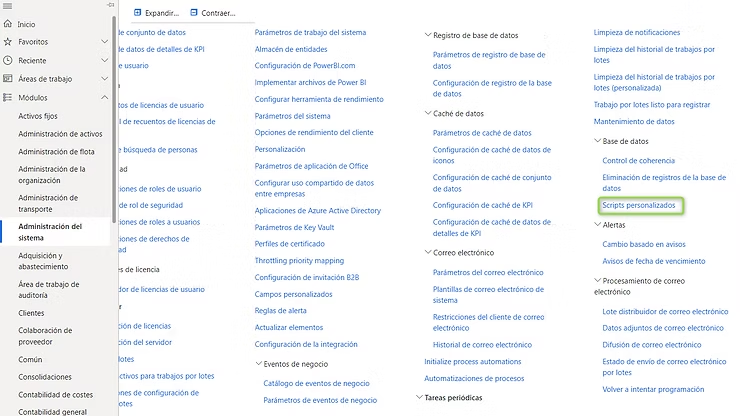
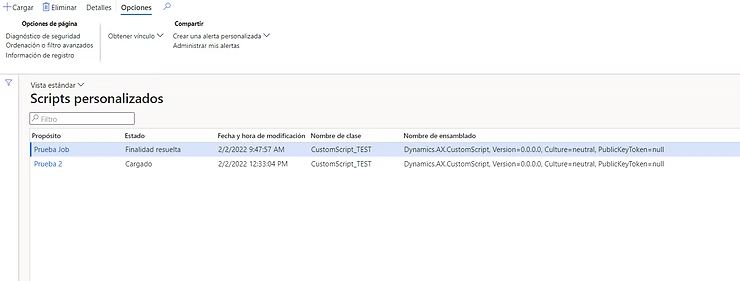
- Once inside, the form that appears looks like this:
As we can see, it’s a very simple form that allows us to upload new Jobs (Upload button) and see the execution history of the Jobs and their information.
Upload
To be able to execute a Job in an environment enabled for it we must follow these steps:
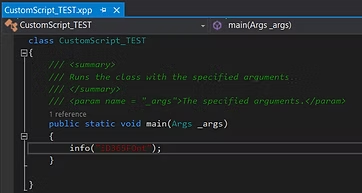
- Create in any development environment an independent package with a model with ONLY ONE Runnable Class (the Job).
This requirement is essential for proper feature validation.
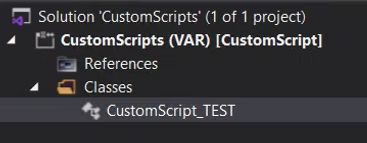
In this case we will create a Job that only shows us a message on screen.
-
Once the Job is created, we create a deployable package from Visual Studio by selecting that package
-
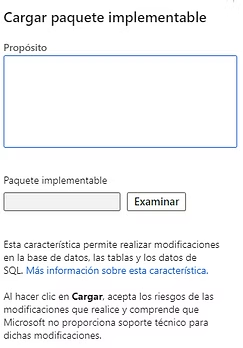
In the D365FO Custom Scripts form we click Upload and it will ask us for the package generated in the previous step
-
We enter an informative purpose and select the package. Obviously it warns us of the dangers of running this type of processes in environments, especially Production.
-
We will see our package loaded in Loaded status
Execution
Once the package has been loaded in the environment, we must execute a series of steps to validate that what we are going to do is correct and that we are aware of the dangers of performing these actions.
-
A user other than the one who uploaded the package must Approve that job. This approval is a completely administrative step. It is clear that we can also reject it or abandon that Job because it is no longer necessary.
-
Once approved, we see that a record is left of who and when this approval was done.
-
Even so, it only lets us “Run test”. It’s about running the job but without it having a real effect but only as informational about what would happen if we ran it. That is why it is interesting to add messages and validations to see them in the tests.
-
In the result, we can see how it executed the test and returned the message we had put.
-
Even so, this is not enough, we have to validate this test through the following button:
-
And now we can run it. It warns us that the changes will be irreversible. We use the “Run” button and it will launch the job.
-
Once launched, it allows us to mark that job depending on the result we have obtained.
-
With this process carried out, we can no longer run the job again unless we upload the package to the system again. In this way, a record remains of what jobs have been launched and who did each of the steps.
Interesting functionality as well as dangerous. Even so, it’s not as simple as launching a RunnableClass, but there are various validations in between that should make it safer to execute this type of processes.
Available in March 2022!!