Dynamics 365 Finance & Operations Integration with Data Lake
After a long time without publishing, we’re back with new features!
That said, we’re heading to the new blog entry. It is known that some time ago a new integration functionality was born between D365FO and the “outside”. This feature was in preview and many of us were able to test it before it went public. We are talking about the integration between D365FO and Data Lake.
With this new functionality we can export the content of Dynamics tables in “real time” to an Azure Data Lake and from there exploit this data with our analytical tools. This export does not require any maintenance like the previous BYOD and saves us many headaches.
What is a DataLake?
To get an idea of what Data Lake means, let’s draw a parallel with reality. As you all know, there are a series of buildings or warehouses in cities and towns that have the function of personal storage for individuals and companies. The client pays a monthly fee and has their own small warehouse to store whatever they want there. It can be from information to furniture, through memories or whatever comes to mind. These objects are stored there and from outside only a “closed” compartment with a key is seen.

This is what an Azure Data Lake would be; a cloud storage space that supports a wide variety of objects and sizes and is also structured, secure, and optimized for querying. So we can store everything from text files of a few KB to virtual machine images of several GBs. All following a hierarchical structure like the one we see on our PC.

Generations
Azure Data Lake is made up of a diverse variety of technologies. The detail of each one and relevant information can be found here. However, in this article we will only focus on what directly concerns the connection with D365FO: Azure Data Lake Store (ADLS).
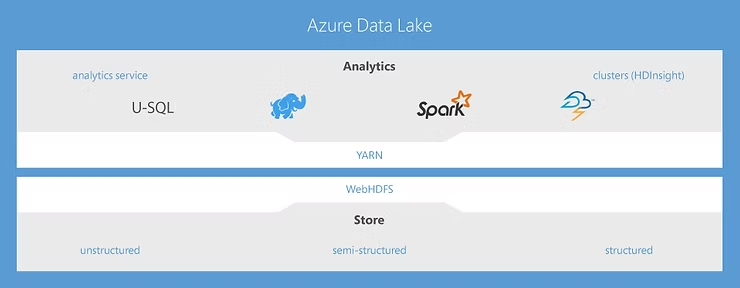
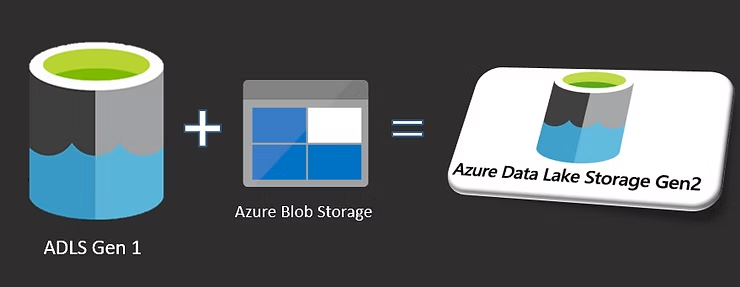
But before we go through the general evolution that ADLS has had to get where it is now. ADLS has 2 generations under its belt; the first went unnoticed by Dynamics and had the following characteristics:
- Created for Hadoop
- Unlimited storage, petabyte-sized files
- Performance optimized for big data analytics
- Enterprise-ready: durable and highly available
The second generation (ADLS Gen 2) adds all the features of the first generation with the functionality, versatility, and capacity of Azure Blob Storage. Data Lake Storage Gen2 provides file system semantics, file-level security and scale, low-cost tiered storage, with high availability and disaster recovery capabilities.
What is the Goal?
Once we already know the characteristics and essence of this Azure service, let’s list what the objectives are of combining it with D365FO.
- Extract data in real time
- Not depend on data extraction jobs (as we currently do with BYOD)
- Not depend on Data Entities (therefore we do not depend on development tasks)
- Unify data sources (Data Lake allows us to connect not only D365FO but other external data sources and centralize everything in a single service)
Infrastructure
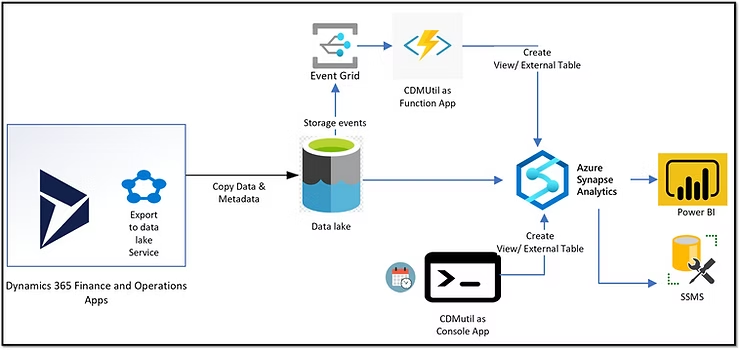
In the following image you can see the idea regarding the infrastructure of Azure services behind this functionality.
In addition to the Data Lake functionality itself that we will install from LCS, a series of other elements are necessary:
- CDMUtil: This tool will help us visualize our data from Azure Synapse as it will be responsible for creating views on the CSV files generated by the Data Lake export.
- Azure Synapse Analytics: This service will be the core point of the functionality, as it will be the anchor point that any analysis service will have to connect to to query the data.
Configuration in D365FO
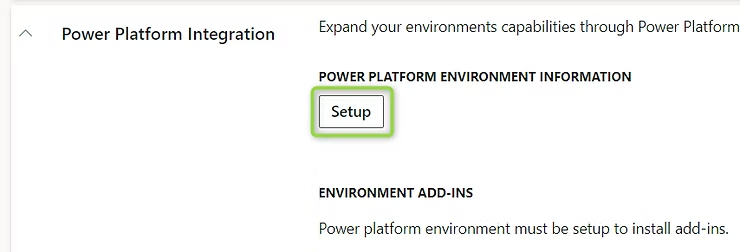
To use this feature in D365FO, it is necessary to configure the link between the D365FO environment and Power Platform. LCS makes it easy for us and we can link it by clicking the following button:
Once this preliminary step is done, you can consult the guide on installing Azure services at the following link:
We will stop at the point of installation of the add-in itself. It is important to mention that the functionality we are talking about has some public functionalities and others that are still in Preview. Unfortunately, the part in testing is what most interests us as it is real time itself. This point is only available for Tier-2 UAT environments and upon request on production environments. So, we will have the possibility to test it if we mark the related checkbox of the LCS installation wizard.
Once installed we can go to D365FO to the following route:
System administration > Configure > Export data to Azure Data Lake
If we don’t see this route, we can access via URL by adding the following information:
&mi=DataFeedsDefinitionWorkspace
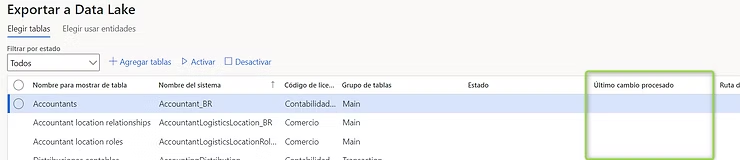
We will see that all and each of the tables of D365FO appear, both standard and custom, and through the “Activate” and “Deactivate” buttons we can make them synchronize in Data Lake.
Also in the “Last change processed” column we can see when the last change synchronization was performed:
Once this is done, that’s all we need to configure in D365FO. As you can see, activating the functionality from the environment itself is very simple, and we can access it whenever we want to activate or deactivate the tables we need.
CDMUtil
But this is not the end. When we have activated the synchronization, the data travels from our D365FO environment to the Data Lake storage account. The appearance of our data is in the form of CSV organized in folders and subfolders following the CDM (Common Data Model) structure.
This is why it is necessary to have a tool that allows us to create a bridge between something easy to read and the web of Data Lake files. This tool is CDMUtil which you can download from the following Github repository:
Once downloaded we have to modify the following file:
Specifically, correctly assign the values of the following image to those created in our Azure portal:
Once the tool is configured and executed, it will build a series of views (one for each table activated in D365FO) in our Azure Synapse. The view we will have will be that of the following image, that of a database with views exactly the same regarding structure and column typology to those we have in the source database.
It is important to keep in mind that each time we activate a new table or make changes to the structure of one of them, we must run CDMUtil again so that the views are refreshed.
We can also configure the tool to run automatically when there is a change in the Data Lake structure, but we will not detail this configuration.
Subsequent Data Analysis
Once we already have our views in Azure Synapse, we could connect our analysis tool (whether PowerBI, Excel…) and start creating our metrics. But often it is possible that we not only have to consider data from D365FO but there may be data sources different from the ERP and it is our task to create the solution that best suits our needs.
For this, I attach below a summary table extracted from the Tech Talk on Data Lake architecture that you can see at the following link:
I hope you enjoyed this article. Great changes are expected in the integration of the different applications of the Dynamics ecosystem!!