Integration Strategies with Azure Synapse Link
Can you imagine being able to access your company’s data in real time, without affecting your system performance and with a scalable and flexible infrastructure? This is what Azure Synapse Link offers you, a tool that allows you to export data from Finance and Operations and Dataverse to an external data repository.
In the current landscape, it is increasingly common to find discussions about the transformation or migration of traditional integration methods between Finance and Operations and Data Lake to a renewed infrastructure. One of the most significant changes in this process lies in the transfer of the management of this functionality from the Finance environment to the Power Platform portal.
This paradigm shift is materialized in Azure Synapse Link, a robust tool that allows you to export data from both Finance and Dataverse to an external storage account. From this point on, a range of possibilities opens up for each environment, which will be able to use this data to generate reports or integrations with third-party applications or Microsoft’s own solutions.
After spending time observing all these possibilities, perhaps the biggest question that has come to my mind is identifying and choosing which is the best way to do it and what are the implications of each one.
That is why the intention I have with this article is to centralize this information, see examples of each type of implementation and how these data are subsequently consumed. We will also see how it affects the cost of resources in Azure.
Let’s start at the beginning, a bit of an index about the article:
- What is Azure Synapse Link?
- Prior configuration in Finance and Operations
- Installation typologies
- Prior question
- Required resources
- Installation
- DeltaLake
- Incremental Datalake
- Subsequent steps
- Fabric
- Final result
- DeltaLake
- Incremental Datalake
- Fabric
- Subsequent data consumption
- DeltaLake
- Incremental Datalake
- Fabric
- Limitations
- Conclusions
What is Azure Synapse Link?
Azure Synapse Link is a functionality that is managed from Power Platform that allows us to export data from 2 different data sources to an Azure Storage:
- Dataverse
- Finance and Operations
With this functionality we can consume this data without draining the transactional system and set up a scalable and common Data Warehouse infrastructure for multiple data sources.

Prior Configuration in Finance and Operations
As far as Finance and Operations is concerned, a series of requirements must be met for the integration to take place:
- Environment version
- 10.0.36 (PU60) cumulative update 7.0.7036.133 or later.
- 10.0.37 (PU61) cumulative update 7.0.7068.109 or later.
- 10.0.38 (PU62) cumulative update 7.0.7120.59 or later
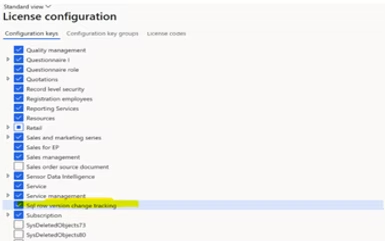
- Enable the Sql row version change tracking configuration key. In version 10.0.39, this configuration key is enabled by default. https://learn.microsoft.com/en-us/power-apps/maker/data-platform/azure-synapse-link-select-fno-data#add-configurations-in-a-finance-and-operations-apps-environment
- The environment must be linked to a Power Platform environment. https://learn.microsoft.com/en-us/power-apps/maker/data-platform/azure-synapse-link-select-fno-data#link-your-finance-and-operations-environment-with-microsoft-power-platform
Installation Typologies
Prior Question
Once we have almost all the elements we need, it is necessary to pause to think about what type of connection we want. With this we can create the Azure resources that are required.
The key question to ask yourself is: How do we plan to consume the data?
We have 3 possible answers:
-
Access to Finance and Operations tables through queries in Synapse Analytics
-
Load incremental changes in data to your own data store
-
Access Finance and Operations tables via Microsoft Fabric
This question is key in determining the infrastructure that needs to be set up.
Once you have determined how you plan to consume the data, you can identify the specific functionality you need to install:
- Delta lake: Provides better read performance by storing data in delta parquet format.
- Incremental Update: Facilitates the loading of incremental changes to your data store, storing data in CSV format.
- Fabric Link: Provides access to Finance and Operations operational tables through Microsoft Fabric.
Required Resources
For each type of integration, here are the Azure resources needed to be created. IMPORTANT: resources must be in the same Azure region as the Finance-Power Platform environment
- Delta lake: Requires an Azure GEN2 storage account, a Synapse workspace, and a Synapse Spark pool. Details of the installation can be found at this link: https://learn.microsoft.com/en-us/power-apps/maker/data-platform/azure-synapse-link-delta-lake#prerequisites
- Incremental Update: Only requires an Azure storage account
- Fabric Link: You need a Microsoft Fabric workspace.
With this detailed understanding of the available options, it will be easier for users to select the appropriate integration based on their specific needs. This will allow them to make the most of the capabilities of Azure Synapse Link and boost their financial operations efficiently and effectively.
Installation
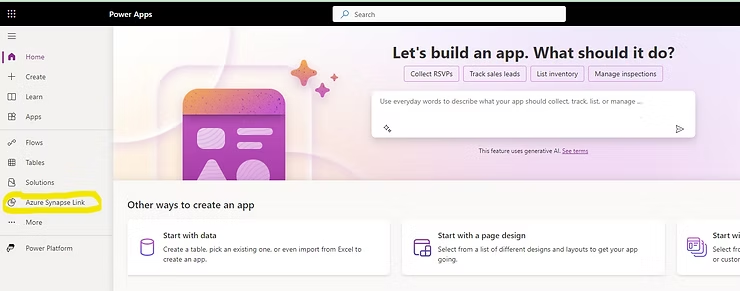
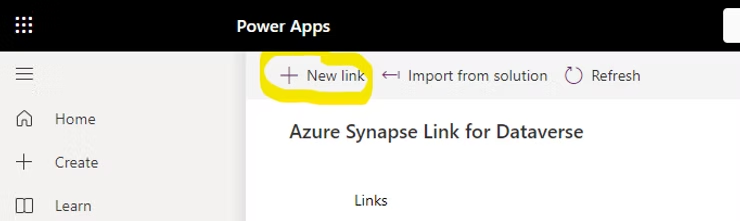
Let’s detail the steps that need to be performed for each type of installation. It is important to note that all installations are done from the same location, on the PowerApps platform of the corresponding environment, in the Azure Synapse Link section:
DeltaLake
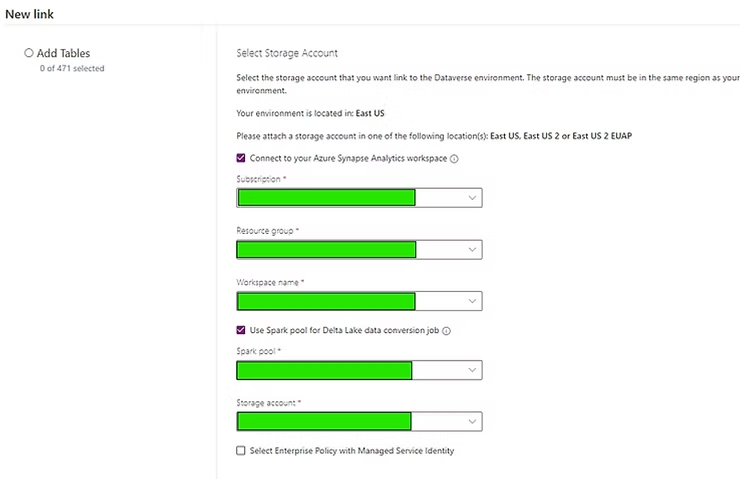
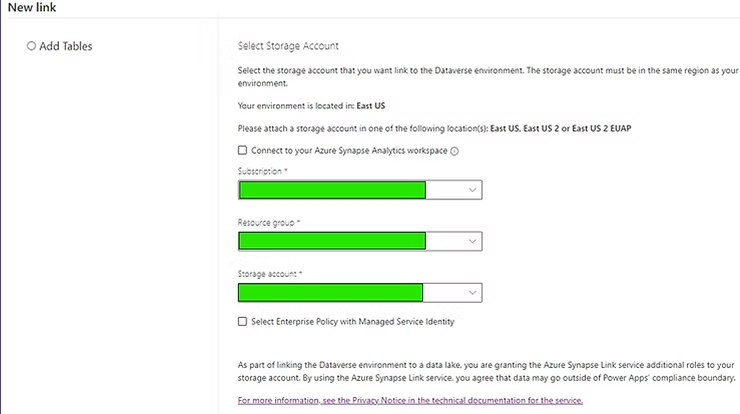
For the installation of the Deltalake type we have to mark the following configuration in all the green boxes:
- Subscription
- Resource group
- Synapse Workspace
- Spark Pool
- Azure Storage Account
Incremental Datalake
For the installation of the Incremental Datalake type we have to mark the following configuration in all the green boxes:
- Subscription
- Resource group
- Azure Storage Account
Subsequent Steps
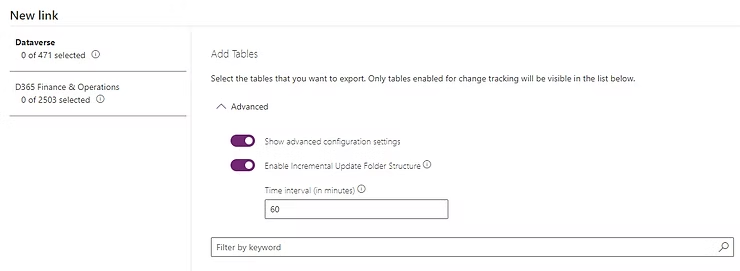
We click Next and a screen will appear that we must configure as follows for both types of installation. In the case of Deltalake it comes marked by default. It is important to keep in mind the refresh time as this will represent an increase in Azure consumption, especially in the case of Deltalake since it uses a Spark resource (Azure Databricks) to generate parquet files.
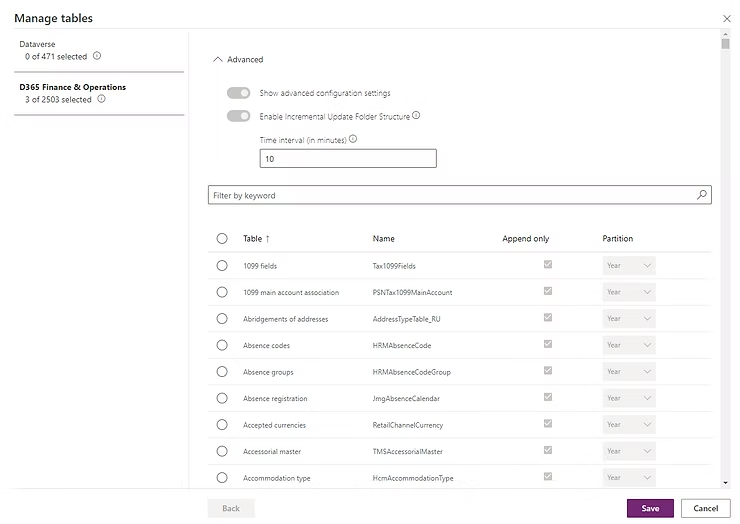
Once the checks are marked, the Finance and Operations tables tab will appear:
And there we mark the tables we want to export through the functionality:
Fabric
For the installation of the Fabric type we have to follow the same steps as for the installation of the DeltaLake.
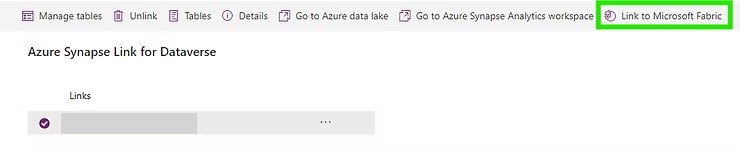
Once we have completed the DeltaLake installation phase we will see that if we hover over the created connection a Link to Microsoft Fabric icon appears:
We will be asked which Fabric workspace to link it to and from here we will have it available:
Final Result
By this point we already have our data synchronizing externally through the functionality we are describing in this article. Now we need to see how we will find it since it varies greatly depending on the scenario.
DeltaLake
In the case of DeltaLake, we will have a container in the storage account with the name of our environment. This name is not customizable as it comes preconfigured by default by the tool.
And inside that container we will find the following:
In the deltalake folder will be the data itself already converted by our Spark Pool to parquet format:
In the EntitySyncFailure folder we can check the particular error of any table we see that has not been synchronized successfully, although we can also check this error from the platform itself where we have activated Synapse Link:
And in the Changelog folder we can find the metadata of each activated table as well as the changes in structure they have undergone:
Additionally there are folders with timestamps. In them, incremental files in CSV format are temporarily stored before being transformed to parquet by the Spark resource.
Incremental Datalake
For the case of Incremental Datalake, the structure we find is exactly the same except for the deltalake folder:
In this case the data resides in the timestamp-marked folders, organized hierarchically according to the table name and with the content in CSV format in annual partitions:
And the metadata of the tables within the Microsoft.Athena.TrickleFeedService folder:
Fabric
The final result is the same as for DeltaLake, the only difference lies in how we consume the data, which we will address in the next section.
Subsequent Data Consumption
Now we know how to activate the functionality, we have exported the data, we know how this data is stored in the storage account; but… how can we exploit and use it now?
Just as in the previous sections, the way to exploit the data depends on the installation we have done. So let’s differentiate them.
DeltaLake
To be able to see the data of this type of installation, it is necessary to access Synapse Studio. Remember that Synapse is one of the resources we have implemented and that it contains the Spark Pool. This pair has set up for us a kind of SQL database (without being one) fully accessible through queries with the same table structure that Finance and Operations has. So we will see all the tables there, we can run queries on them and set up views to facilitate data ingestion.
To access Synapse Studio, we place ourselves on the Synapse Link we have created on the PowerApps platform and click on the icon to go to Synapse Workspace:
Here is an example of a query:
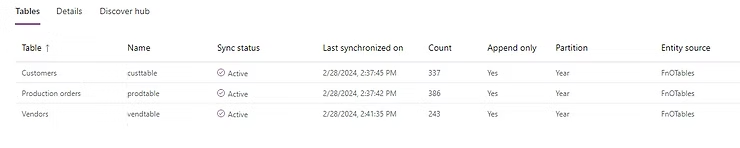
Similarly, you can also access the data using SQL Management Studio with Synapse as the SQL server. The connection data can be found in the resource in the Azure portal:
To be able to exploit the data exported through incremental datalake, it is necessary to understand the concept of Common Data Model.
The Common Data Model (CDM) is a metadata system that allows data and its meaning to be shared easily between applications and business processes.
- Common Data Model Structure:
- The CDM is a standard and extensible collection of schemas (entities, attributes, relationships) that represent concepts and activities with well-defined semantics.
- The CDM facilitates data interoperability by providing a common structure for representing information.
- Source properties include:
- Format: Should be cdm.
- Metadata format: Indicates whether you are using manifest or model.json.
- Root location: Name of the CDM folder container.
- Folder path: Path to the CDM root folder.
- Entity path: Path of the entity within the folder.
- Manifest name: Name of the manifest file (default is ‘default’).
- Schema linked service: The linked service where the corpus is located (for example, ‘adlsgen2’ or ‘github’).
This CDM format we mentioned is the structure we saw in the storage account. A series of CSV files (data) with others in JSON format (structure).
Known this format, the subsequent task to be able to work with them is to set up a pipeline or similar in Azure Data Factory to progressively move this data incrementally to a Data Warehouse destination. In future articles we will delve into how to create this type of pipelines but here are a couple of links where you can find tutorials or ready-made templates:
https://learn.microsoft.com/en-us/azure/data-factory/format-common-data-model
Fabric
At the moment the link between Finance and Operations and Fabric is not active, so this section will be updated when it is available.
Limitations
You can find the limitations of using Synapse Link with Finance and Operations in the following link:
Conclusions
I hope that with this article I have been able to clarify the ideology behind all of this, the different ways to set it up, and that each one is capable of deciding which of the installations is most appropriate in their case. We have been able to see the following:
- Azure Synapse Link: We discovered how this tool allows us to export data from Finance and Operations and Dataverse to an external storage account, opening up a range of possibilities for reports and integrations.
- Simple Configuration: We learned to configure this functionality from the Power Platform portal, choosing the appropriate installation type according to our needs.
- Intelligent Storage: We explored how data is stored in the storage account according to the chosen format, and how to access and consume this data from Synapse Analytics, SQL Management Studio, or Microsoft Fabric.
- Limitations and Resources: We reviewed the limitations when using Azure Synapse Link with Finance and Operations, and the Azure resources needed for each type of installation.
See you in the next article!!