Discover the Magic of Process Mining in Warehouses
Hello everyone! Today we’re going to talk about something truly exciting: Microsoft Power Automate’s Process Mining! 🚀
What is Process Mining?
Process Mining, or data mining of processes, is a discipline that combines concepts of data mining, business processes, and information systems with the aim of improving efficiency, reducing costs, improving quality, and increasing transparency of business processes. In other words, it’s like taking an X-ray of your business processes to get a complete and accurate view of how they are developing and which ones need improvement.

What Can We Analyze with Process Mining?
Well, almost everything! Process mining can help identify bottlenecks and inefficiencies in processes, allowing organizations to optimize their operations and improve productivity. Additionally, it can help organizations identify non-compliant processes and take corrective actions to avoid legal and financial risks.
For example, a process is the granting of a loan by a bank. This process follows a logical sequence of interrelated tasks (customer request, documentation delivery, analysis of said documentation, loan approval, money delivery, etc.). All these tasks or stages of the process are recorded as events; what process mining does is analyze all this data and extract conclusions to improve the process.
Other examples applied in this case to Finance and Operations would be:
- Order Approval Process: This process involves reviewing and approving customer orders. With Process Mining, you can analyze how long it takes for each order to be approved, identify where delays occur, and find ways to speed up the process.
- Inventory Management Process: This process covers everything from receiving merchandise to storing and eventual shipping. With Process Mining, you can identify inefficiencies, such as delays in receiving or shipping goods, and find ways to optimize the process.
- Billing Process: This process involves creating and sending invoices to customers. With Process Mining, you can analyze how long it takes for each invoice to be created and sent, identify where delays occur, and find ways to speed up the process.
- Supplier Management Process: This process involves selecting and managing suppliers. With Process Mining, you can analyze the efficiency of your interactions with suppliers and find ways to improve relationships with them.
License Required for Use
Process Mining is licensed as part of Microsoft Power Automate. There are three Power Automate licenses that are related to Process Mining:
- Power Automate Trial License: Offers task and process mining capabilities for a limited time of 90 days, with a process mining capacity of 100 MB per process.
- Power Automate Premium License: A per-user license that offers task and process mining capabilities, with process mining capacity of 50 MB per user up to a total of 100 GB per tenant. It also offers additional Dataverse capacity.
- Power Automate Process Mining Add-on: A per-tenant license that offers additional process mining capacity of 100 GB and Dataverse. It is needed when the 100 GB limit of the Premium license is reached.
Warehouse Material Movement Analysis (D365FO)
Dynamics 365 Supply Chain Management offers a warehouse material movement analysis template for Power Automate Process Mining. This template can be used to create processes that help warehouse and operations managers get a clear view of material flow in the warehouse. 📦🏭
Best of all, this template uses storage, product, and transactional data that are already stored in your system. It allows you to visualize and analyze material movements on the warehouse floor, based on closed warehouse work records. 📊
In terms of process mining, each warehouse work record corresponds to a case, and each pick or place work line corresponds to an event. Depending on your configuration, an activity can be any of the following: warehouse location, warehouse location profile, warehouse zone. 📍
So, if you’re looking for a way to find inefficiencies that can be eliminated to improve warehouse performance, this might be the solution you’ve been looking for! 🎯
Prerequisites
Here’s a summary of the prerequisites for using this functionality:
- Supply Chain Management Version: To get started, you need to have Supply Chain Management version 10.0.35 or later. Make sure your software is up to date. 💻
- Dataverse Link: The Supply Chain Management environment must be linked to a Dataverse environment. If it’s not, it’s time to make that connection. 🔗
- User Roles: The user implementing the process in Power Automate Process Mining must have one of the following roles: Warehouse Manager, Warehouse Planner, and/or System Administrator. So you need to have the right permissions. 🔑
- Dataverse User: The Supply Chain Manager user who implements the process in Power Automate Process Mining must also be set up as a user in the linked Dataverse environment. And to implement the process, a user must have the Environment Creator and/or System Administrator role. Once implemented, the process can be shared with other users. Those users will automatically get the necessary permissions to use the process. 🔄
Now you’re ready to dive into process mining in Power Automate.
Functionality Setup
First, go to Warehouse Management > Setup > Process Mining > Warehouse Material Movement Process Setup. Then, on the Action Pane, select Deploy Process to open the deployment wizard. 🧐
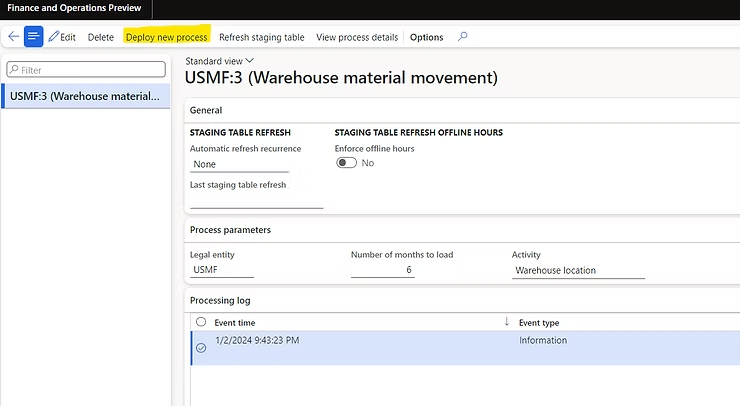
You will be asked to provide the following information:
- Process Name: Enter a name for the process. We recommend that you include the legal entity (company) and other filter information in the name, so you can easily identify the process later. 📝
- Company: Select the legal entity you want to use this process to analyze. Only warehouse work records in the selected legal entity will be included in the Power Automate Process Mining process. 🏢
- Number of Months to Load: Specify the number of months to load at once. This filter helps prevent excessive or irrelevant data from being loaded into Power Automate Process Mining. Only warehouse work records that were closed after the specified time threshold will be included in the Power Automate Process Extraction process. 📅
- Activity: Specify which column Power Automate Process Mining should treat as an activity. For more information on process mining terminology, see Glossary in Power Automate Process Mining. 📊
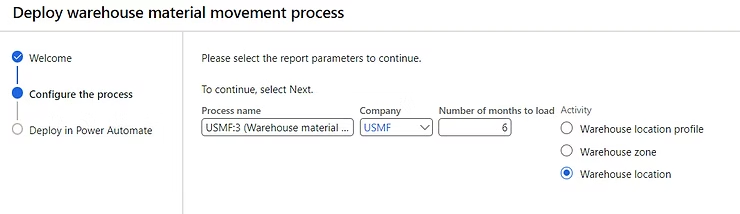
And that’s it! Now you’re ready to dive into process mining in Power Automate.
Analysis Results
To access the analysis from Supply Chain Management, follow these steps:
- Go to Warehouse Management > Inquiries and Reports > Warehouse Performance Analysis > Warehouse Material Movement Analysis.
- In the Process Name field, select the name of the process you want to see. The list includes only processes that are ready for analysis and are accessible to you.
- The Power BI report of the selected process will open. You can interact with the report to view and analyze the process in various ways.
- To view the selected process in Power Automate Process Mining, select View Process Report on the Action Pane. The Power Automate Process Mining user interface will open in a new tab of your browser.
- To perform advanced process analysis, evaluate process behavior with business rules, detect rework, create your own business metrics, select Open Power Automate Process Mining to open the process in the Power Automate Process Mining desktop application.
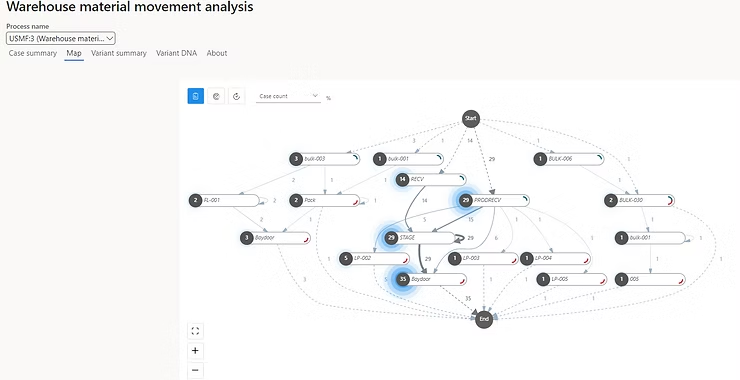
Practical Example Case
To shed some light and show examples of these analyses, I used a Contoso database with some additional movements carried out by colleagues in their daily work.
To analyze the results you have 3 ways to do it. Not all offer the same visualizations:
- Power Automate Process Mining Portal: This portal allows you to create process reports and read data visualization charts. You can also read a process map, variant genealogy, and process KPIs. Additionally, you can filter a report to focus on specific aspects of your processes that interest you.
- Dynamics 365 FnO Menu Points: Dynamics 365 FnO offers unified and real-time visibility of financial and business operations to make better and faster decisions. You can use the Dynamics 365 FnO menu points to access and analyze process reports.
- Process Mining Desktop Application: The Power Automate Process Mining desktop application allows you to edit and analyze your processes created in the process mining capability. You can use this application to perform advanced process analysis, evaluate process behavior with business rules, detect rework, create your own business metrics.
In my opinion the Desktop application allows more functionality and also offers better performance and usability.
It should be noted that since it is a demonstration environment, there are jobs that were left incomplete during testing. These jobs do not reflect the reality of a business where warehouse movements always have a beginning and an end.
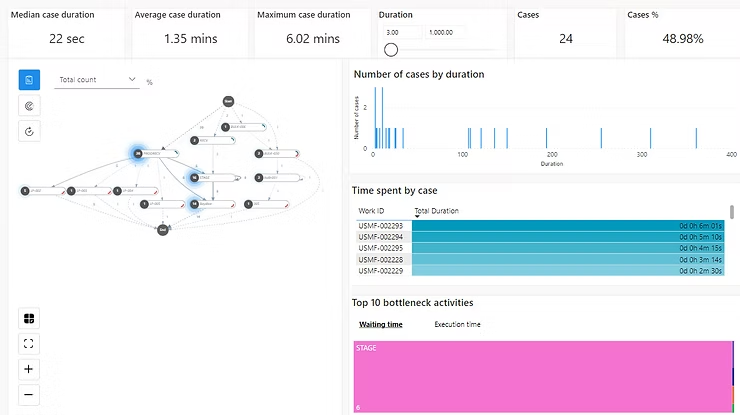
You can see this case in the following image:
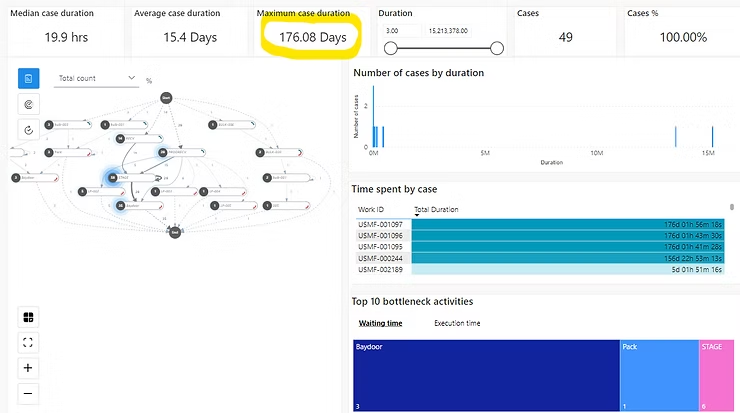
As you can see, there is a job that took half a year to close. That distorts this particular data but we can filter to skew the results using the bar on the right.
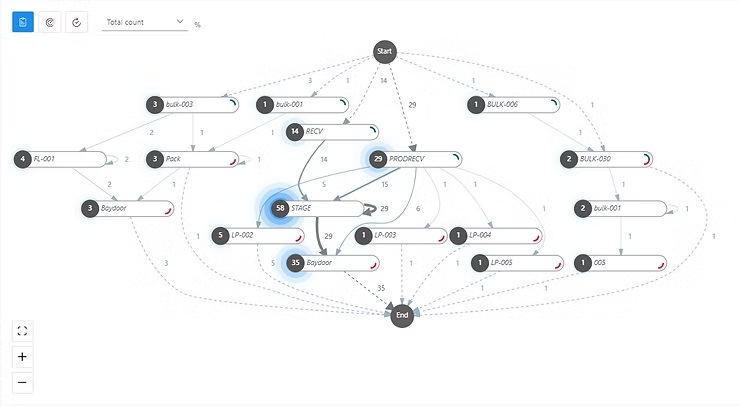
In this other visualization we see the journey of jobs through the different locations and it allows us to detect which is the most-traveled zone(s) of our warehouse as well as how to relocate items to reduce the time of movements:
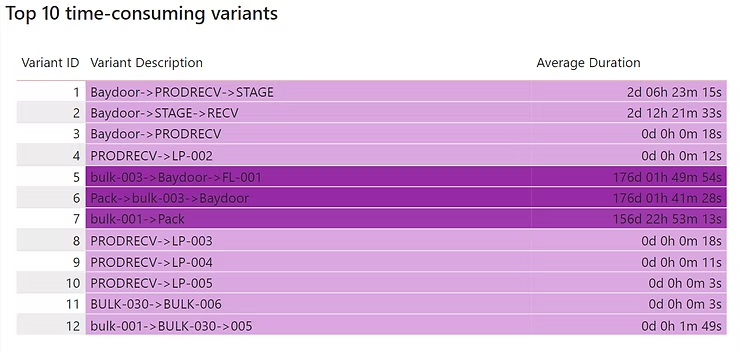
We can also obtain the list of location combinations that assume the highest process time for the worker. In this way we can determine if that high time is due to the spatial organization of the locations or by the process itself within Dynamics (for example the menu point of the warehouse app):
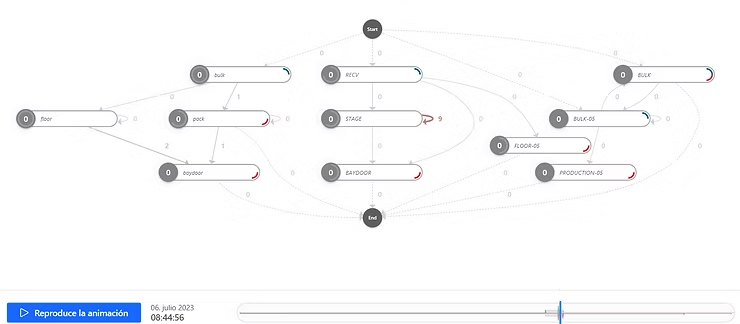
If we want something a bit more animated, we even have the flow of those jobs in animation format to see the hot zones at each moment. This visualization is very interesting for detecting time slots or seasons where the flow is much more intense and try to find solutions for it.
And finally, one of the most interesting, is being able to find what is the root cause of those time differences:
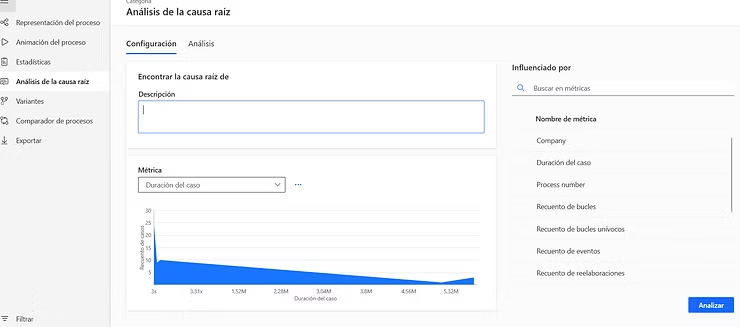
When you select one or more possible causes, the application in tree mode will break down its data and allow you to go down levels until you find some conclusion that is useful to you:
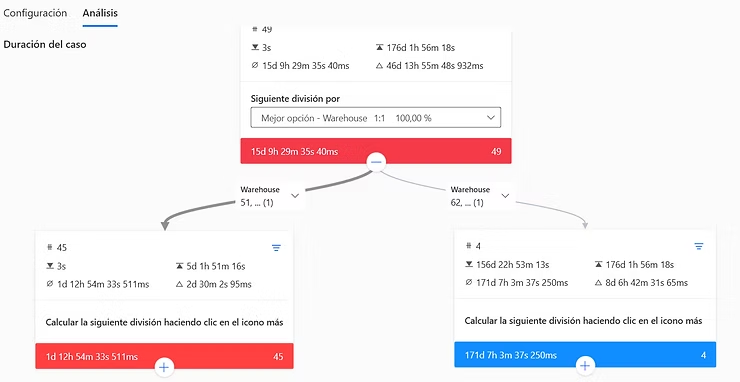
In this example we see how the warehouse is a factor that greatly affects processing time.
And as if that weren’t enough, it has Copilot built in!!!!! We can ask it for whatever we want: analysis of what it considers most significant, create filters, get metrics…
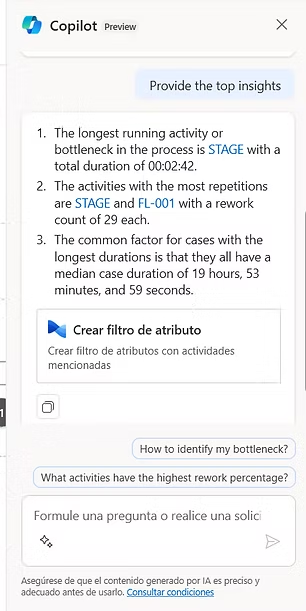
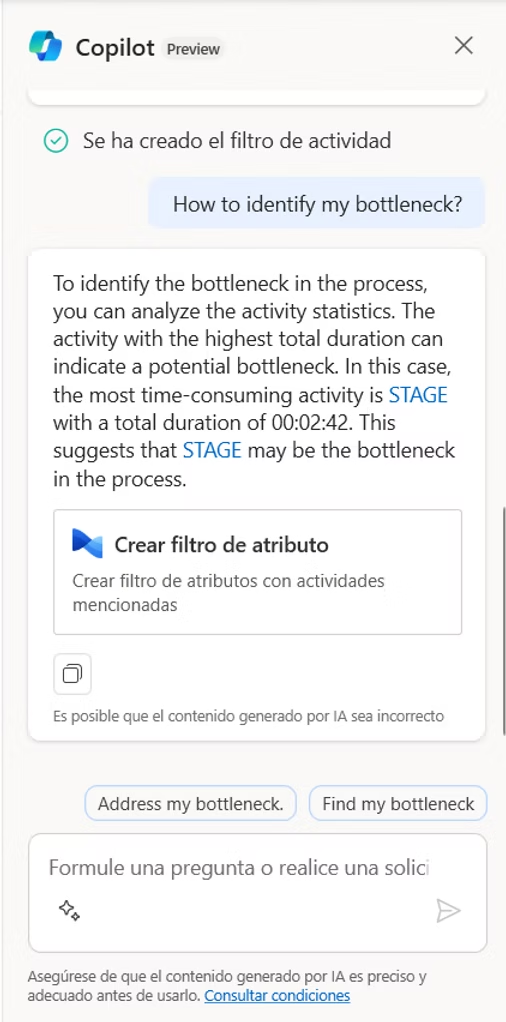
And that’s all folks! 🎉 We have unraveled together the fascinating world of process mining in warehouses. We hope you enjoyed the journey as much as we did. Remember, the digital world never sleeps, so keep your eyes open for the next updates. See you next time! 😊👋