📊 D365FO now installs Financial Reporting from PPAC
📊 D365FO now installs Financial Reporting from PPAC
Microsoft has removed an important blocker for Finance and Operations environments managed in Power Platform: the Microsoft Dynamics 365 Financial Reporting add-in can now be installed directly from Power Platform admin center (PPAC). Until September 17, 2026, the documentation said that PPAC-managed environments—including unified developer experience environments—didn’t offer this installation and required a support request.
The new path is PPAC > Environments > Resources > Dynamics 365 apps > Install app. Microsoft labels it as recommended and retains Lifecycle Services (LCS) as the legacy alternative for environments still managed by LCS. This isn’t a cosmetic documentation change: it closes a functional gap between the two administration models and turns support-dependent provisioning into an operation governed by the platform team.
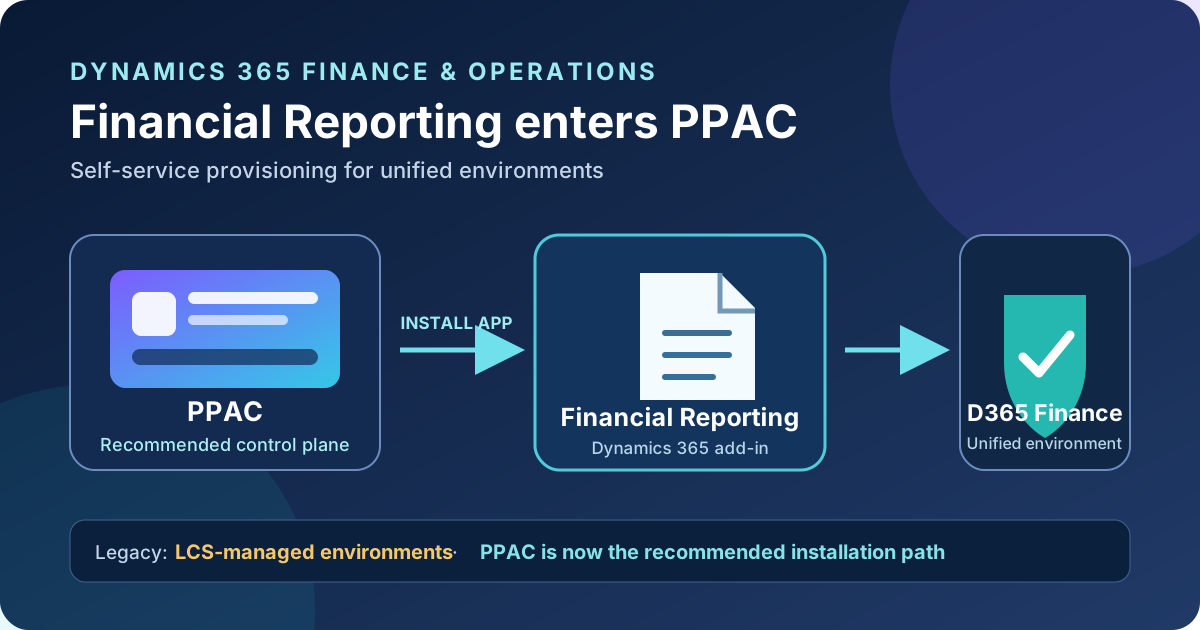
Original diagram. PPAC is the recommended route; LCS remains the legacy route for environments it still manages.
What changed
The change is confirmed by the official documentation updated on September 17, 2026 and its public commit:
| Before | Now |
|---|---|
| PPAC-managed environments didn’t offer add-in installation. | PPAC can select and install Microsoft Dynamics 365 Financial Reporting. |
| A unified environment required support to configure Financial Reporting. | An administrator with environment access starts installation from Dynamics 365 apps. |
| LCS was the only documented self-service route. | PPAC is recommended; LCS is labeled Legacy. |
Microsoft doesn’t label the capability as preview or publish a regional rollout. The documentation presents it as the current, recommended procedure. That confirms a supported route, but doesn’t guarantee that the app immediately appears in every tenant. If it isn’t available or installation fails, Microsoft asks customers to open a support request with the environment ID, region, and error message.
Why it matters for the unified experience
In the unified model, Finance and Operations environment lifecycle converges in Power Platform admin center. Keeping Financial Reporting outside PPAC made a core functional component an exception. With this update:
- the Dynamics 365 app catalog becomes the provisioning point;
- installation is bound to the environment selected in PPAC;
- teams can observe status and errors in the same administration plane;
- LCS is no longer required to install the add-in in a PPAC-managed environment;
- sandbox and production creation runbooks can include a repeatable step, although Microsoft hasn’t published a provisioning API for it.
This doesn’t move reports to Dataverse or replace the Financial Reporting engine. It changes the control plane that installs the add-in. The service remains exposed inside Finance, retains its reporting database, and receives versions through slipstreaming or true-up.
Architecture and lifecycle
Separate four layers:
- PPAC or LCS starts provisioning. Use PPAC for Power Platform-managed environments and LCS only for the legacy model.
- The Microsoft Dynamics 365 Financial Reporting package creates the resources required by the add-in in the environment.
- Dynamics 365 Finance exposes menus, permissions, definitions, and report execution per legal entity.
- Financial Reporting/MRDB processes and stores designs, configurations, and generated reports.
The component version doesn’t have to match the monthly Finance version. Microsoft automatically updates Financial Reporting when an operation with downtime triggers true-up—for example, a binary update, infrastructure maintenance, or an AOT package deployment.
That separation has two practical consequences. Installing the add-in doesn’t pin one version forever, so regression tests should cover later maintenance windows. Also, PPAC provisions the component but doesn’t replace functional security or per-company accounting configuration.
Requirements and preflight checks
Before selecting Install, record at least:
- target environment ID, name, region, and type;
- whether PPAC or LCS owns its administration;
- database presence and Ready environment state;
- availability of Microsoft Dynamics 365 Financial Reporting in the environment catalog;
- the administrative identity performing the operation and change approval evidence;
- legal entities, users, and roles included in validation;
- any designs or configuration that must survive if this is a reinstall scenario.
The generic PPAC guidance filters eligible targets to environments with a database and a ready state. It also says administrators can install apps only in environments for which they have permission. The Financial Reporting page doesn’t publish a more precise PPAC role, so don’t invent one: use the least-privileged identity that can see the environment and execute Install app, and document who approved the installation.
No additional licensing change accompanies this update. The generic documentation requires a valid Dynamics 365 license to enable Dynamics 365 apps when creating an environment, but the Financial Reporting revision introduces no documented SKU or new consumption meter.
Install from PPAC
1. Select the correct environment
Open Power Platform admin center, go to Manage > Environments, and select the environment. Verify its ID and region; the display name isn’t sufficient when similar copies or sandboxes exist.
2. Open the environment catalog
In the command bar, open Resources > Dynamics 365 apps. This view lists apps already installed and those available to the environment.
3. Install Financial Reporting
Select Install app, find Microsoft Dynamics 365 Financial Reporting, review the packages, accept the legal terms and privacy statement, and select Install.
Don’t start parallel installations against the same environment. Retain the start time, operator, and related change record for failure correlation.
4. Monitor the result
Return to the environment’s apps view and wait for installation to complete. If the status becomes Installation failed, open Details and capture the full error. The Financial Reporting guide asks you to send Support:
Environment ID
Region
Full installation error message
Don’t replace the environment or blindly reinstall before saving the evidence. An app missing from the catalog also calls for escalation—not an attempt to use the LCS route against a PPAC environment.
Functional validation after provisioning
A completed installation doesn’t prove that the service is usable. Run a short end-to-end test:
- Open General ledger > Inquiries and reports > Financial reports.
- Confirm that default reports are present.
- In a test legal entity, validate fiscal calendar, ledger, chart of accounts, currency, at least one posted transaction, and
MainAccountselection under Financial reporting setup. - Generate a report with a user holding
FinancialReportsGenerate. - Drill into details, validate dimensions, and export the result.
- Create or change a design with a user holding
FinancialReportsMaintain. - Confirm that a user without privileges can’t maintain or generate reports.
- Repeat report generation after a maintenance window or deployment that can trigger true-up.
Microsoft publishes these relevant duties: FinancialReportsSecurityMaintain, FinancialReportsMaintain, FinancialReportsGenerate, and FinancialReportsPerfReview. Corresponding privileges govern security maintenance, design maintenance, generation, and viewing. Assign duties to business roles; don’t leave functional users on System administrator as a permanent workaround.
Historical data and audit evidence
The installation change doesn’t alter two limits that belong in the operating design:
- from Financial Reporting 10.0.45, MRDB no longer supports fact versioning; rerunning or drilling into a report recalculates detail from current transaction data;
- generated reports expire after 90 days by default unless an authorized user selects Never expire.
The saved top-level balance doesn’t change, but detail can differ when the underlying transaction was edited. For immutable evidence, Microsoft recommends exporting the finalized report to Excel or PDF and retaining it under the organization’s records policy.
Uninstall is destructive
Microsoft warns that uninstalling the add-in permanently removes Financial Reporting resources—including created reports, designs, and configurations—and that recovery isn’t supported. Don’t use uninstall/reinstall as the first troubleshooting step.
The current documentation also has an important asymmetry: it explains installation through PPAC, but the uninstall procedure still describes LCS only. That’s a fact, not permission to improvise. For a PPAC-managed environment, open a Microsoft support case before removal and request the supported procedure for that environment type.
Legacy path for LCS environments
If Lifecycle Services still manages the environment:
- confirm that Power Platform integration is configured;
- select Install a new add-in;
- search for Financial reporting;
- accept the terms and install.
Don’t migrate an environment to the unified experience just to obtain this screen. The update removes the PPAC support dependency; it doesn’t by itself change the lifecycle migration plan.
Practical recommendation
Update environment creation runbooks and treat Financial Reporting as an explicit go-live component. Install it from the catalog in a PPAC sandbox, validate security and one end-to-end report, document final status, and only then repeat the change in production.
The improvement matters because it removes an exception: the add-in can now follow the same control plane as the unified environment. Keep a manual control point until Microsoft publishes a provisioning API and clarifies uninstall behavior for PPAC.