Power Platform Creator Kit: Advanced Components and Tools
Today we present a new preview feature that is not really a feature per se, but rather a solution that can be added to our Power Platform environments and that adds functionality and components to the already existing ones: the Creator Kit. This solution aims to provide a series of helper components for developers to create their applications more quickly and easily, and also provides testing tools to intuitively verify whether those components meet our requirements.
We will analyze the necessary requirements, how to install the solution, and we will detail the features of each of its components.
Prerequisites
First, you need to enable Power Apps component framework for canvas apps. To do this, follow these steps:
-
Log in to PowerApps
-
Select Settings and go to Admin Center
-
On the Environments tab, select your environment
-
Go to Settings

- On the Products tab, select Features
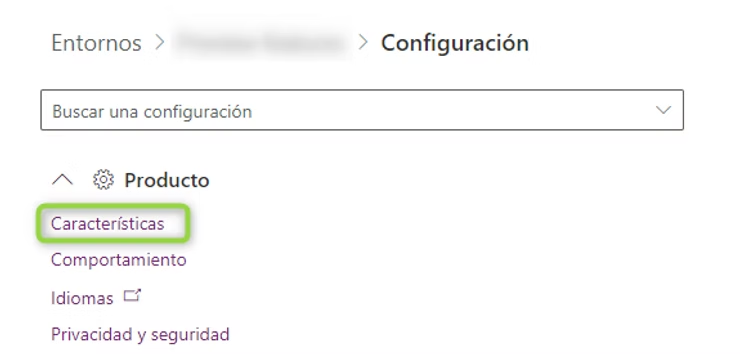
-
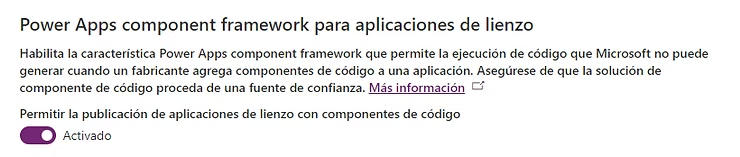
Enable Power Apps component framework for canvas apps
-
Select Save
Importing the Creator Kit Solution
To use this feature, you need to install the corresponding solution in the PowerPlatform environment of your choice.
- Go to your chosen PowerPlatform environment
- Download the solution via this link: https://aka.ms/creatorkitdownload
- Import the downloaded solution into your environment
The components included in the Kit are listed in the following link:
https://docs.microsoft.com/en-us/power-platform/guidance/creator-kit/components
If you want to explore the code of this solution, you can go to the Github source:
https://github.com/microsoft/powercat-creator-kit
Creator Kit Components
The Creator Kit contains the following components:
Applications
Component Library

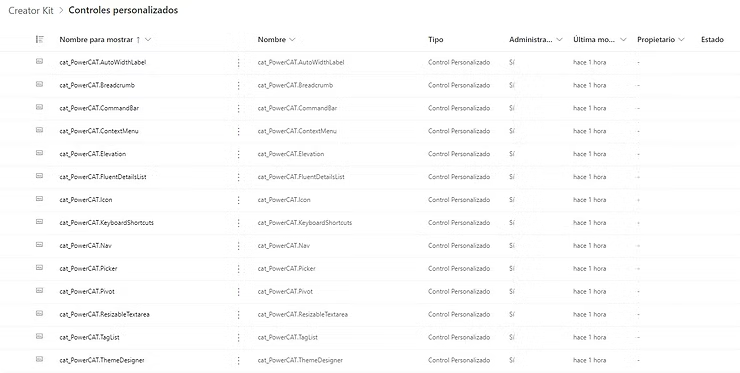
Custom Controls

Let’s Play!
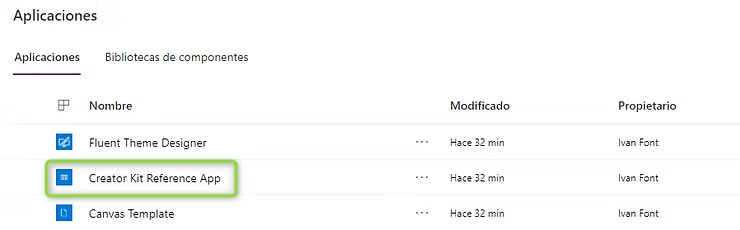
Reference Application
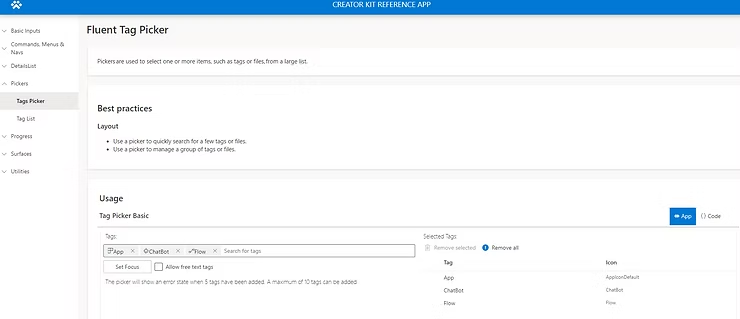
First, we find a new application called Creator Kit Reference App.
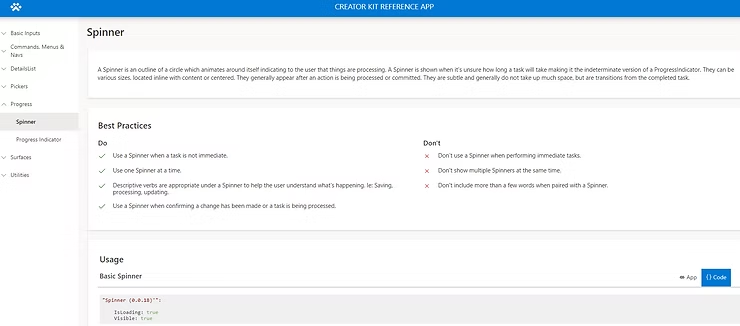
When we open this application, we see that it provides information about all Creator Kit functionalities.
If we click on any of the functionalities in the left panel, we can:
- Test that control
- See how it behaves when the user interacts with it
- Get Pros and Cons of its use
- Best practices for using it
- Code on which it runs
All these components are available for use in application creation.
Fluent Theme Designer
This application allows us to create a custom theme to later be applied to a PowerApps application.
First, we modify the colors we want to display in the different positions of the application using the controls on the left. We understand as primary color that color with which the most visual controls of the application are identified: default action buttons, selected checkboxes, attention areas, etc.
Once the colors are changed, we see in the central part of the application a demo of how it would look with those selected colors. In this way, we get an idea of the visualization of the application for users.
Once we have a clear color combination, we click on Export Theme and we will see that it generates a JSON structure:
As the instruction says, we should only paste this code in the OnStart property of the application we want and that color combination will be automatically applied to all its screens. This way we can control the color palette of all our controls without having to go one by one. And if we want to change it, it will only be necessary to change it in one place.
Canvas Template
This application is intended to be a help for application creation. It is made up of an empty screen and another with many controls implemented and preloaded, and also linked to a loaded JSON theme. This allows you to easily create any screen by copying the preloaded controls, without having to do them from scratch and configure them.
The available controls are all the new ones that the Creator Kit includes and we can also see how their visibility will be on the screen.
New Components
As we have seen in the section about the new features that the Creator Kit provides, the new controls are accessible from the Custom menu of our PowerApps. This allows us to add these controls in already created or new applications we are going to create.
Conclusions
As we have been able to see, this is a solution that brings many new functionalities and also provides us with tools to test these components before their use in final applications.
However, since it is a preview version, it is possible that there are controls that do not quite work or some bugs appear. That is why collaboration and reporting of anything that does not work correctly is appreciated. We can even contribute new ideas to include in the final version. All of this through the Github repository mentioned earlier in the Issues section.
https://github.com/microsoft/powercat-creator-kit/issues
I hope you enjoyed the post and that in these remaining days of summer you have time to test and play with these elements. Happy summer!